
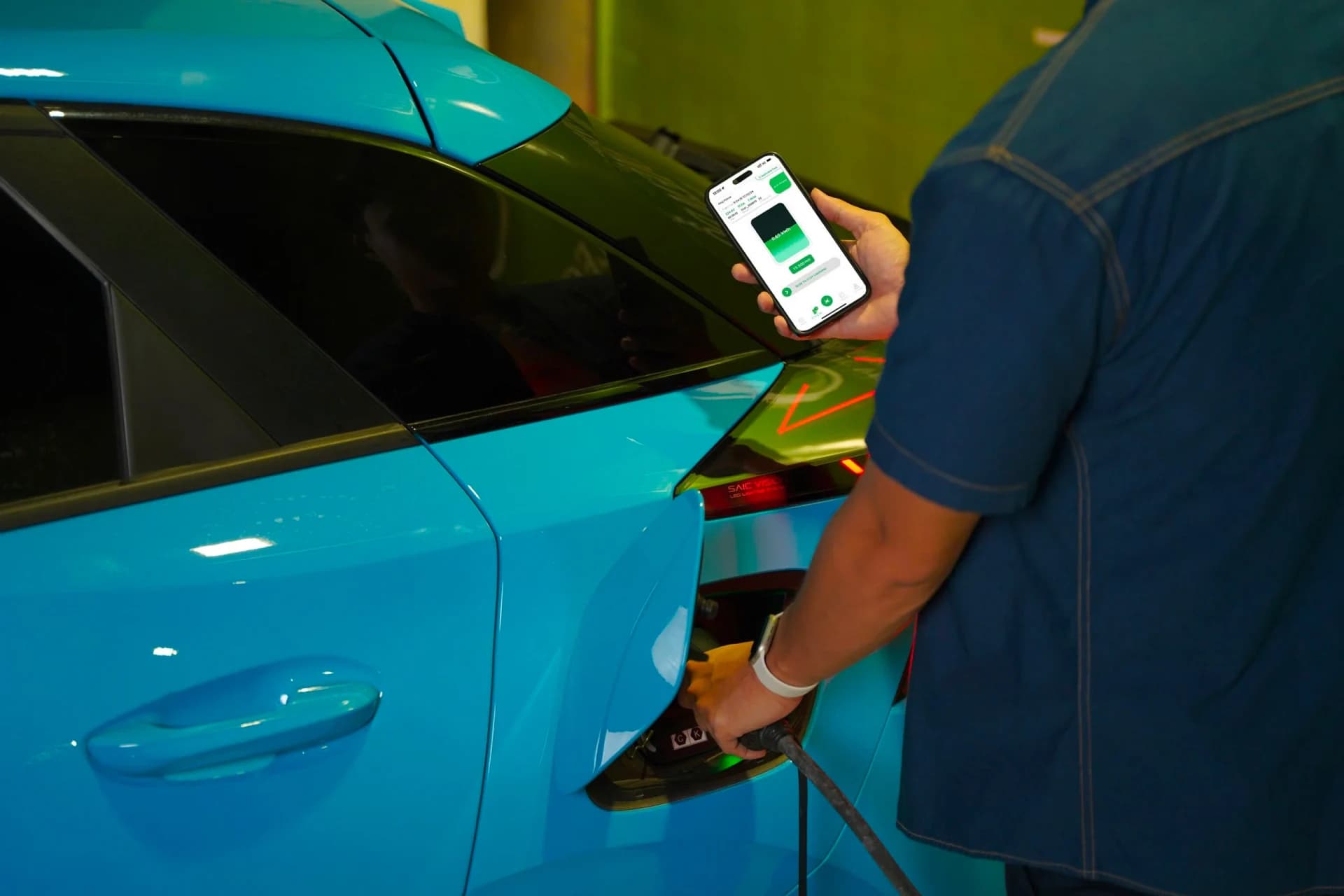
How to use the EBOOST app
Everything you need to find a station, top up, and charge your EV quickly with EBOOST.
Fast charging in a few taps
From finding a station to paying, everything is seamless right on the EBOOST app.
Find the nearest station
Open the EBOOST app to find the nearest station using location, filter by area, or search for a station name in the search bar.
Activate charging
Scan the QR code on the socket or select the matching socket in the app. Don't forget to check the charging fee and apply a promo code if you have one.
Monitor your charging session
Track your charging time, kWh, and cost right in the app.
Stop charging & pay
Finish when the battery is full or stop charging yourself, then receive your payment receipt.
How to use the app at an electric motorbike charging station
First time using EBOOST to charge your electric motorbike? Follow the 8 steps below to start charging in just a few minutes.
- 1
Download the EBOOST app to your phone.
- 2
Create a user account or sign in with your email.
- 3
Top up your account: tap “Top Up”, choose an amount, and link a bank account or Momo wallet to pay.
- 4
Select "Bike" and find a charging point near you.
- 5
Select the charging port in the app or scan the QR code on the socket you plugged into.
- 6
Confirm and start charging.
- 7
Wait for the battery to fully charge, or stop whenever you like.
- 8
Check your charging receipt in the app.

How to use the app at an electric car charging station
First time using EBOOST to charge your electric car? Follow the 8 steps below to start charging in just a few minutes.
- 1
Download the EBOOST app to your phone.
- 2
Create a user account or sign in with your email.
- 3
Top up your account: tap “Top Up”, choose an amount, and link a bank account or Momo wallet to pay.
- 4
Select "Car" and find a charging point near you.
- 5
Select the charging port in the app or scan the QR code on the socket you plugged into.
- 6
Confirm and start charging.
- 7
Wait for the battery to fully charge, or stop whenever you like.
- 8
Check your charging receipt in the app.

Manage your account & customize the app
Update your profile, change the language, review your charging history, and refresh the app when needed.
- 1
Step 1: Tap “Account” and select “Profile Information”.
- 2
Step 2: Fill in all your information.
- Don't leave fields blank and don't use abbreviations.
- Look up your area's postal code on Google.
- 3
Step 3: Tap “Save” when you're done.
- 1
Step 1: Tap “Account”.
- 2
Step 2: Scroll down and tap “Settings”.
- 3
Step 3: Tap “Language” and choose your preferred language.
- 1
Step 1: Tap “History” in the menu bar.
- 2
Step 2: Select the time period you want to review.
- 1
Step 1: Expand the map on the home screen.
- 2
Step 2: Tap the “Refresh” icon and wait a few seconds for it to finish.
How to top up your EBOOST Prepaid Charging Balance
Choose the top-up method that works for you: a linked card, a one-time payment, or the Momo wallet.
Debit and credit cards (Mastercard, Visa).
- 1
Step 1: Tap “Account”.
- 2
Step 2: Tap “Top Up” and choose the amount you want to add.
- 3
Step 3: Choose to top up with a linked card: debit and credit cards (Mastercard, Visa).
- 4
Step 4: Tap “Add Another Card”.
- 5
Step 5: Fill in all the details, then tap “Link” to confirm the top-up.
Supports every channel: ATM, debit, QR code, and more.
- 1
Step 1: Tap “Top Up” and choose the amount you want to add.
- 2
Step 2: Choose “One-time payment” with any channel (ATM, debit, QR code, and more).
- 3
Step 3: Choose the payment method that suits you (10 methods available).
- For “Bank” or “Card”: fill in all the details, then tap “Link” to confirm.
- For “QR Code” or “E-Wallet”: take a screenshot of the payment code, switch to your banking app / e-wallet, scan the saved QR code, then confirm the payment.
- Note: each QR code corresponds to the amount you selected and can only be used once. Do not change the payment details or amount yourself.
- 1
Step 1: Tap “Top Up” and choose the amount you want to add.
- 2
Step 2: Choose to pay with Momo.
- 3
Step 3: Choose a payment method.
- 4
Step 4: Open the Momo app.
- 5
Step 5: Complete the payment using any of the methods in the Momo app.
How to charge at an EBOOST station
Find and select the right socket, save your favorite stations, or scan a QR code to start charging right away.
- 1
Step 1: Tap the “Find a charging point” bar.
- 2
Step 2: Tap the “Filter” icon.
- 3
Step 3: Find a suitable charging point and tap “Apply”.
- 4
Step 4: Tap the location that works for you.
- 5
Step 5: Select the socket where you plugged in the charger.
- 6
Step 6: Select or enter a discount code (if you have one), then tap “Start Charging”.
- 1
Step 1: Tap the “Search charging stations” bar at the top.
- 2
Step 2: Enter the station name and select the location you want.
- 3
Step 3: Select the number of the socket you are plugged into.
- 4
Step 4: Enter a discount code (if you have one), then tap “Start Charging”.
- 1
Tap the “Heart” icon to save a station to your favorites.
- 2
Scroll to the bottom of the home screen to choose your favorite station.
- 3
Tap the black location icon to find the station nearest you.
- 1
Step 1: Select QR code scanning on the home screen.
- 2
Step 2: Scan the code on the socket where you plugged in the charger.
- 3
Step 3: Select or enter a discount code (if you have one), then tap “Start Charging”.
- 4
Step 4: Wait for the battery to fully charge, or stop charging whenever you like.
Need advice?
Leave your details and the EBOOST team will get in touch to recommend the EV charging solution that fits you best.
- 0868.108.011
- support@eboost.vn
- 48B Dang Dung, Tan Dinh Ward, Ho Chi Minh City, Vietnam